
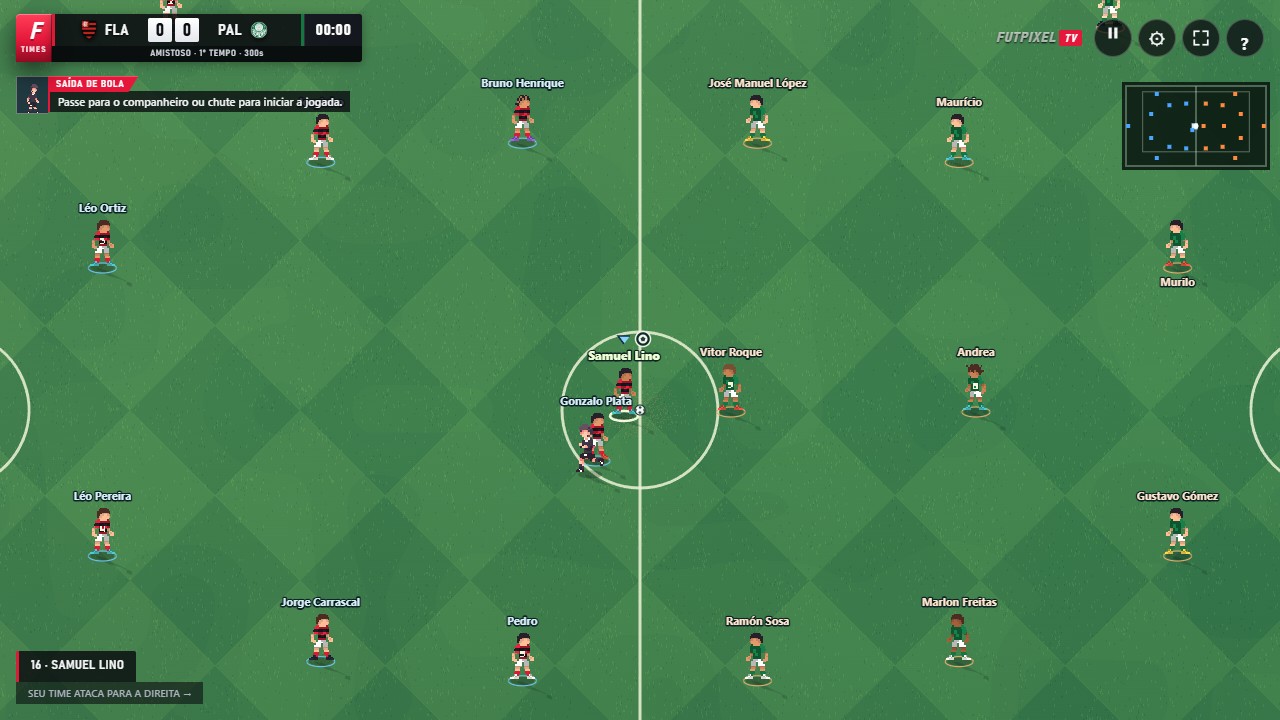
Create a room or join an available one
In the community, choose Play online to open match setup. Rooms are private by default: share the code with the person you want to play with. To let other players find the match, choose public visibility before creating the room.
The Rooms tab brings together room creation, joining by code, quick search and public rooms. A match already in progress appears as occupied; this does not mean there is a place available to join halfway through. Private rooms do not appear in this list.
Invite someone from your list
Open a person's profile by selecting their name or avatar in chat or the user list. Send a friend request and wait for them to accept. In the Friends tab, use the option to invite them to play. They receive the invitation and can accept it to join the match.
Public profiles show game information such as a name, avatar and favourite club. Presence changes when the connection closes. If the internet drops without a normal disconnect, the status may take some time to expire.
Confirm your teams before getting ready
Inside the room, each person chooses a club and confirms Ready. Changing a team clears both players' ready status so they can review the match. After the last change, both players need to confirm again.
The stadium and kick-off time follow the host's options. Both players should keep their tabs open during the match. Use the exit option in the pause menu when you want to leave.
Play with a stable connection
The host processes the match and sends the game state to the opponent. That makes both computers' connections and performance important. Avoid downloading other files at the same time, keep the tab in the foreground and, if possible, use a wired connection or stable Wi-Fi.
A connection with some delay can still work, but instant response is not guaranteed. Fluctuations, packet loss and an overloaded computer can cause stuttering even when the average ping looks acceptable.
Open FutpixelTV and put this guide into practice.
Play now ↗